
After logging in to Microsoft Teams, open the Powtoon App. This is the page that will allow you to create a new Powtoon.

You can create a new Powtoon using either of the following methods:
1. Use a ready-made template
2. Start from scratch with a blank Powtoon
Use a ready-made template
A ready-made template requires only minimal editing, enabling you to create a Powtoon quickly and easily. Click on Template button, and choose the desired template.
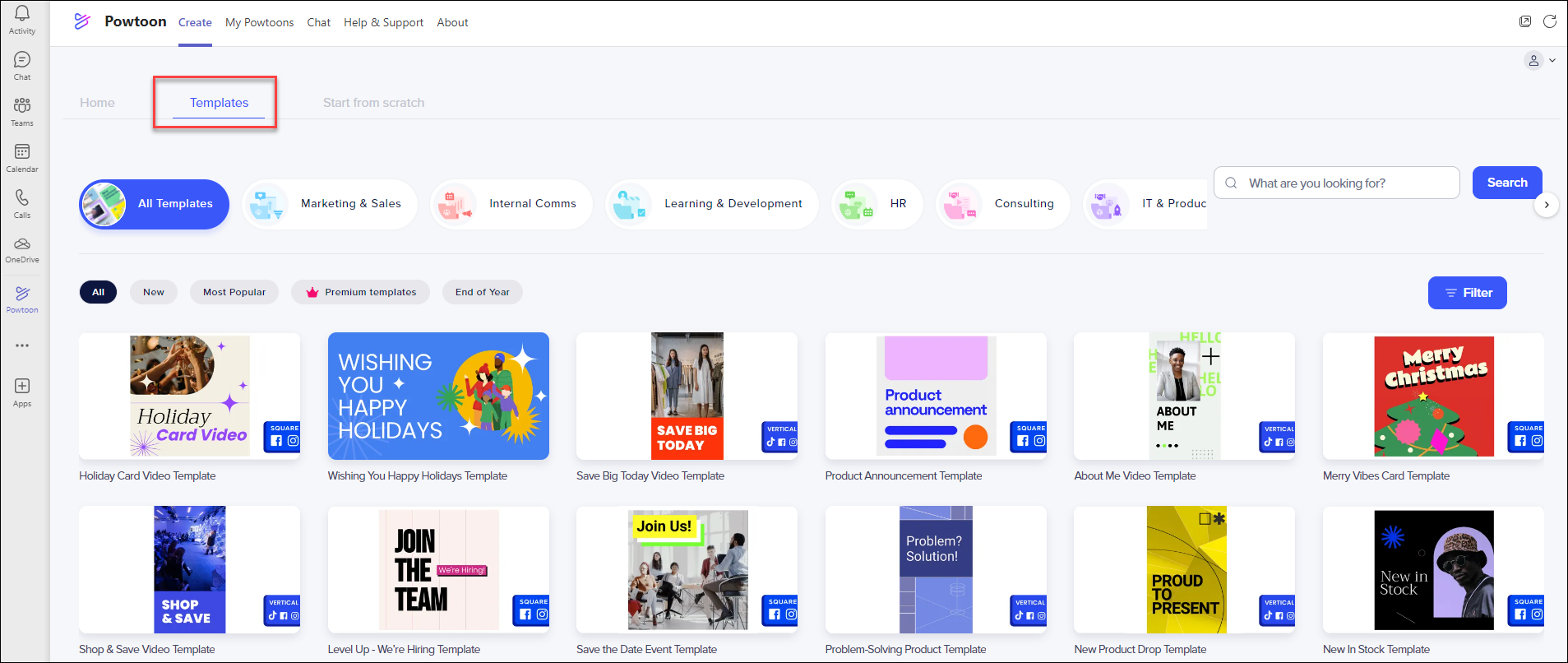
Start from scratch with a blank Powtoon
This mode provides you with access to all the Powtoon tabs (scenes, background, text, characters, etc.) and displays the timeline at the bottom of the slide. In this mode, you can:
- Create a Powtoon by selecting content from any of the Powtoon tabs and libraries
- Control the timing of the objects on the slide by using the timeline
Click Start from Scratch to begin:
 Next, you will need to choose an aspect ratio for your Powtoon.
Horizontal : Use this aspect ratio if your Powtoon will be uploaded to YouTube or Vimeo. Objects can be placed on the entire stage.
Square : Use this aspect ratio if your Powtoon will be uploaded to Facebook or Instagram. Objects can be placed only in the middle of the stage.
Vertical : Use this aspect ratio if your Powtoon will be viewed mainly on mobile devices or in an Instagram Story. Objects can be placed only in the middle of the stage.
Comments
0 comments
Article is closed for comments.